
Perhaps the biggest nightmare for anyone running WordPress is finding that their site does not appear in Google search results. For many site owners this is both surprising and frustrating. And if you are publishing great content, updating your site regularly and following every SEO rule you know of, the problem feels even more confusing.
But there is no need to panic — there are many reasons behind a site not showing on Google, and almost all of them are the kind of problem that can be solved. If your WordPress-based website is not being indexed by Google or is not appearing in searches, technical SEO gaps, misconfigured site settings or errors you are not aware of could be the source of the problem. technical SEO gaps, misconfigured site settings or errors you are not aware of could be the source of the problem.
In this guide we will work through, step by step, why your WordPress-built site is not showing on Google, and you will learn clear, practical fixes that make it visible in Google results again quickly. As Neil Patel always points out, SEO is not complicated: it is about applying the right strategies step by step. Now is the time to take those steps.
Why Is Your WordPress Site Not Showing on Google?
There are usually a handful of core reasons why your WordPress site does not appear in Google search results. In this section we will go through the most common ones and what lies behind them.
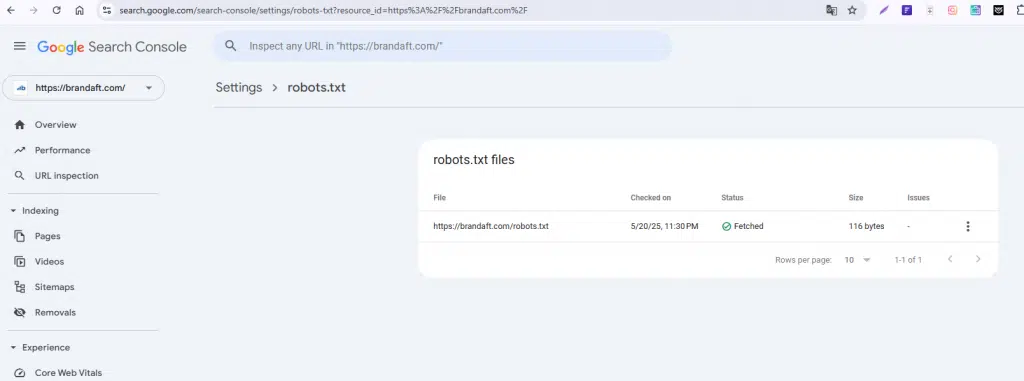
Robots.txt file, a simple but critical file that tells search engine bots which pages on your site they may crawl and which they may not. One small mistake in this file can stop Google indexing your site completely or in part.
For example, the default WordPress setup sometimes contains these lines:
txt
CopyEdit
User-agent: *
Disallow: /
This blocks Google from crawling and indexing your entire site. Correct robots.txt settings should look like this:
txt
CopyEdit
User-agent: *
Allow: /
Fix:
Check your robots.txt file from your WordPress admin panel or over FTP. You can pinpoint the problem with the Robots.txt Test Tool in Google Search Console.
The “Discourage search engines from indexing this site” Setting Left On by Mistake
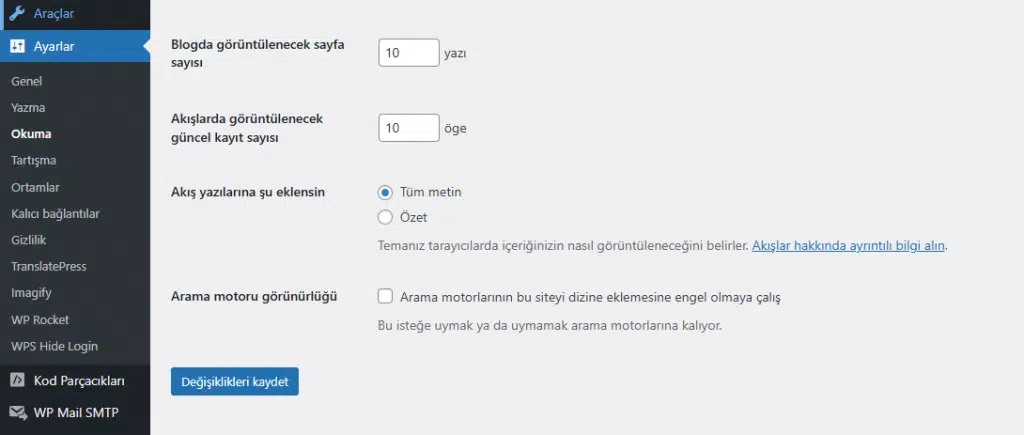
One of the most common WordPress mistakes is leaving the “Discourage search engines from indexing this site” setting switched on in the admin panel. While this setting is active, WordPress adds a “noindex” tag to every page of your site and stops Google indexing it.
Check this:
- WordPress Dashboard → Settings → Reading is the page to open.
“Discourage search engines from indexing this site” must not be ticked.
Fix:
If it is ticked, clear it straight away and save your changes. Then head to Google Search Console and request indexing again.
Is your WordPress site slowing you down?
We overhaul speed, security and technical SEO end to end, so your site wins in search and with users alike.
REQUEST A SITE ANALYSISFix:
If it is ticked, clear it straight away and save your changes. Then request indexing again from Google Search Console.
Google Penalties
Sites that do not follow Google’s quality guidelines are penalised from time to time. These penalties usually come from:
- Spam content,
- Duplicate content,
- Malicious or misleading links,
- Mistakes such as keyword stuffing.
How do you know whether you have been hit by a Google penalty? Quite simply:
- If your traffic has suddenly dropped dramatically,
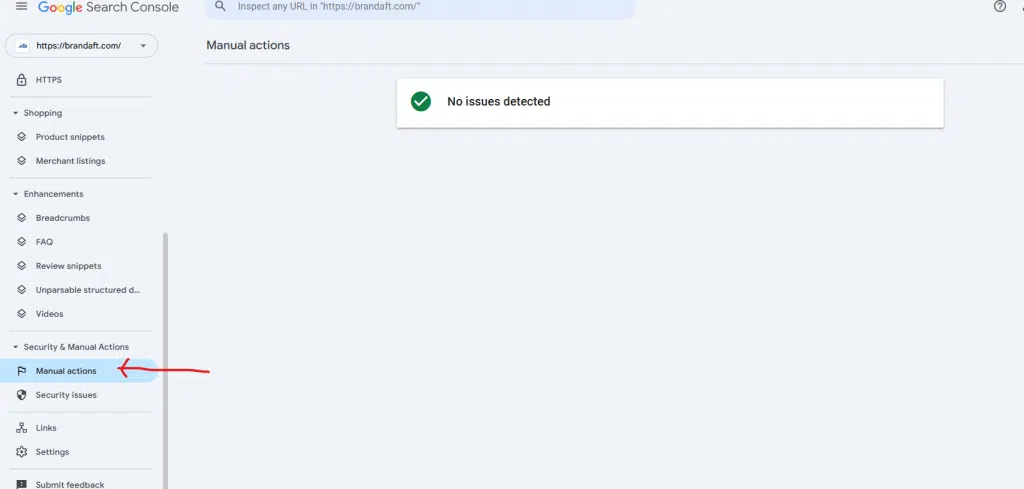
- If you see a “manual action” message in Google Search Console.
Fix:
Check the “Manual actions” section in Google Search Console. If a problem is flagged there, fix it straight away and request a review.
Technical SEO Mistakes
Technical SEO mistakes are among the most common reasons a site is not indexed. They include:
- Broken links (404 errors): If Google’s bots hit a lot of errors on your site, they crawl it less.
- Slow-loading pages: Because Google cares about user experience, it may index very slow sites less.
- Mobile compatibility problems: If your site does not perform well on mobile devices, you may run into indexing problems.
Fix:
- To spot broken links, use a plugin such as Broken Link Checker or similar.
- Analyse your site speed with tools such as PageSpeed Insights or GTmetrix and optimise what they report.
Check your mobile compatibility with Google’s Mobile-Friendly Test tool. Google makes this tool available through Search Console.
A Missing Sitemap
A sitemap (sitemap.xml) works as a guide that explains the structure of your site to Google. Sitemap missing? Then Google may struggle to find the pages on your site, or take far longer to find them. That means pages are not indexed at all, or only indexed late.
Fix:
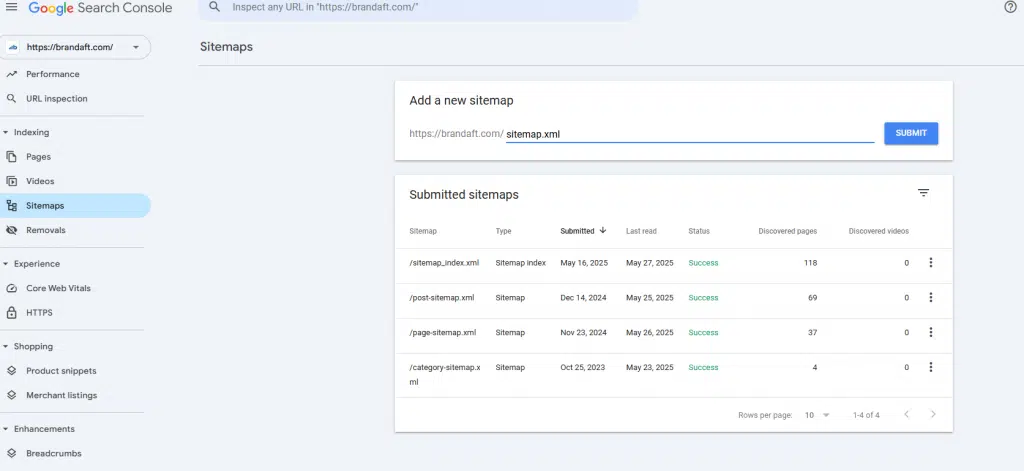
You can create a sitemap easily with plugins such as Yoast SEO or Rank Math. Then submit your sitemap through Google Search Console:
- Sign in to Search Console.
- From the left-hand menu, go to the Sitemaps section.
- Enter your sitemap URL and click the “Submit” button.
You now have a much clearer picture of why your site is not showing on Google, and you can clear the problems by working through the fixes. In the next section we will look at how to apply each of these steps in detail!
How to Fix a WordPress Site That Is Not Showing on Google
Below you will find the detailed steps to follow to get your missing WordPress site indexed again and to improve how it performs in search results. Working through each step carefully is what fixes the problem for good.
Step 1 – Check Your WordPress Settings
There is a setting in the WordPress admin panel that stops search engines indexing your site. While it is active, your site cannot appear in search engines such as Google.
How do you check it?
- Log in to your WordPress admin panel.
- From the left-hand menu, go to the Settings → Reading page.
- At the bottom of the page you will see an option called “Discourage search engines from indexing this site” with a checkbox next to it.
- Check whether that box is ticked.
- If it is ticked, your site is hidden from every search engine.
- If it is not ticked, the problem lies somewhere else.
How do you fix it?
- Untick the box.
- Save your changes.
- After that, you need to send an “indexing request” from Search Console so that Google crawls your site again.
Step 2 – Review and Edit Your Robots.txt File
Robots.txt is a simple text file in your site’s root directory that tells search engines which pages may and may not be crawled.
Where do you find it?
- Connect to your site’s root directory with an FTP client (such as FileZilla).
- Find the robots.txt file directly in the root directory.
- If it is not there, some WordPress SEO plugins create the file automatically or serve it virtually.
How do you edit it?
- Download the robots.txt file and open it in a text editor.
- If the file contains lines that block the whole site, such as Disallow: /, that stops Google crawling your site.
- A correct example file looks like this:
makefile
Copy
User-agent: *
Disallow:
Sitemap: https://www.examplesite.com/sitemap_index.xml
- This structure lets every search engine crawl your whole site and points to where your sitemap is.
Once you have updated the file:
- Upload the robots.txt file again over FTP.
- Verify it with the robots.txt testing tool in Google Search Console.
Step 3 – Set Up and Check Google Search Console
Google Search Console (GSC) is a free tool where you can track how your site performs in Google and request indexing.
How do you add a site?
- Go to the Google Search Console website.
- Sign in with your Google account.
- Click the “Add property” button.
- Type your site’s URL exactly (mind the difference between https and http).
- Verify that you own the site. (You can choose one of several methods: uploading an HTML file, adding a DNS record or verifying through Google Analytics.)
Getting URLs indexed:
- Go to the “URL Inspection” section in Search Console.
- Enter the URL of the page you want indexed.
- Use the “Request indexing” option to tell Google to crawl your page again.
Bulk indexing:
- By submitting an XML sitemap you can get many URLs indexed at once (covered in detail in the next step).
Step 4 – Create and Submit an XML Sitemap
What is an XML sitemap?
It is the file that tells Google about all the important pages on your site and how they are structured. It is essential if your site is to be crawled quickly and completely.
How do you create one?
- The most widely used WordPress SEO plugins, Yoast SEO and Rank Math, generate an XML sitemap automatically.
- If Yoast SEO is installed, you can reach your sitemap at https://www.yoursite.com/sitemap_index.xml.
Submitting Your Sitemap to Google:
- Sign in to Google Search Console.
- From the left-hand menu, go to the Sitemaps section.
- In the “Add a new sitemap” field, enter your sitemap’s URL (sitemap_index.xml, for example).
- Click the “Submit” button.
- Keep an eye on how the submitted sitemap is processed.
Step 5 – Find and Fix SEO Errors
Technical SEO errors can keep your site out of Google, which is why a detailed site audit is needed.
SEO Audit Tools You Can Use:
- Screaming Frog SEO Spider: A desktop program that crawls your site and lists technical problems such as broken links, redirect issues and missing meta tags.
- Ahrefs: Provides site audits, backlink analysis and keyword tracking.
- SEMrush: A complete SEO audit suite covering technical errors, performance problems and content analysis.
The Most Common Technical SEO Problems:
- Broken links (404 errors),
- Duplicate content,
- Missing or misconfigured meta tags,
- Slow page load times,
- Poor mobile compatibility.
Fix:
- List the errors in detail and prioritise them.
- Fix or remove broken links.
- Optimise your meta descriptions and titles.
- Improve your page speed (image optimisation, using a CDN, caching).
- Run mobile compatibility tests.
Step 6 – Check for Google Penalties
Your site may have been penalised by a Google algorithm or by a manual action. That has a serious effect on your visibility.
Checking Manual Actions:
- In Google Search Console, Security and Manual Actions → Manual Actions is the section to open.
- If there is a penalty, you will find detailed information here, along with a list of the pages affected.
How Are Google Penalties Lifted?
- Understand exactly why you were penalised (spam, bad backlinks, content quality and so on).
- Fix the problem (disavow bad backlinks, remove spam content, raise the quality).
- Submit a reconsideration request to Google.
How Does a Site Get Back to Its Old Rankings?
- Once the problem is fixed and your reconsideration request is approved, rankings come back over time.
- This process can take weeks, or even months.
- Be patient and keep up your regular SEO work.
Once you have applied these steps fully and carefully, your WordPress site not showing on Google should no longer be a serious issue. After that, you can put your weight behind SEO optimisation and build your site’s traffic and visibility.
Extra Tips to Improve Your WordPress Site’s Visibility on Google
Showing up on Google is the basic step; the real goal is visibility that keeps growing and lasts. Fixing the technical foundations alone is not enough for that. You need to earn value in Google’s eyes through on-site and off-site strategies. Here are the detailed, effective methods to apply to strengthen your WordPress site’s visibility on Google.
Producing Quality, Original Content
Google’s algorithm is focused on serving users the most useful and original content, which makes it critical for the content on your site to be high quality and original.
- Uniqueness : Duplicate content is penalised by Google. Build your content out of information that is entirely your own and cannot be found anywhere else.
- Adding Value: Instead of simply stuffing in keywords, produce content that genuinely helps the reader, solves a problem and goes into detail.
- Expertise and Trustworthiness: Make sure your content meets the expertise, authoritativeness and trustworthiness (E-A-T) criteria. Cite your sources and use up-to-date data.
- Using Multimedia: Make your posts easier to read by enriching them with images, infographics, videos and tables.
- SEO-Friendly Writing: Mind your title tags, meta descriptions, keyword density and your use of H1–H6 when you write SEO-friendly content — but make sure it stays natural and easy to read.
Publishing and Updating Content Regularly
Google gives priority to sites that are active and up to date, so you should update your site regularly and add new content.
- Build a Publishing Plan: Set a weekly or monthly content calendar. Publishing regularly makes Google’s bots visit your site more often.
- Update Old Content: Your content can go out of date over time, so refresh and update your older posts periodically.
- Follow the Trends: Keep track of developments and current news in your sector and produce content to match.
- Answer Users’ Questions: Analyse the questions people ask and the intent behind their searches so that you can create content that matches those queries.
Internal Linking Strategy
Internal linking, as well as improving user experience, helps Google understand and crawl your pages better.
- Natural Links: Create natural, meaningful backlinks that are relevant to your content and interesting to your readers.
- Anchor Text Containing Keywords: Use the keywords you are targeting in your link text to send a signal to search engines.
- Highlight Important Pages: Point more internal links at critical content such as sales pages and key blog posts to raise their importance.
- Balanced Distribution: Rather than piling links onto the homepage or a handful of pages, spread them evenly across the whole site.
- Deep Linking: Link internally not only to the homepage and categories but to deeper pages as well.
Backlink Work and Social Media Sharing
The external links pointing at your site (backlinks) are one of the strongest factors in Google rankings. Social media sharing, meanwhile, increases organic traffic and raises brand awareness.
- Quality Backlinks: Spammy or low-quality backlinks do damage. Focus on earning backlinks from authoritative sites relevant to your sector.
- A Natural Backlink Profile: Collect backlinks organically, by creating valuable content and building relationships.
- Guest Writing: Earn backlinks by guest writing on trusted blogs in your sector.
- Social Media Activity: Increase engagement by sharing your content on platforms such as Facebook, Twitter, LinkedIn and Instagram.
- Community Involvement: Be active in forums, industry groups and social networks to promote your brand and create backlink opportunities.
Mobile and Speed Optimisation
Because Google has adopted mobile-first indexing, it has become critical for your site to be mobile friendly and to load fast.
- Mobile Compatibility: Use a responsive theme and check your site with Google’s Mobile-Friendly Test tool. Fix any mobile problems immediately.
- Page speed: Slow sites lose users and lose ground in the rankings.
- Optimise your images (WebP format, compression),
- Remove unnecessary plugins,
- Use a caching plugin (WP Rocket, W3 Total Cache),
- Integrate a CDN (Content Delivery Network),
- Choose a minimal, fast theme.
- Optimise your images (WebP format, compression),
- Google PageSpeed Insights: Use this tool to measure your site’s speed on both mobile and desktop, and apply the recommendations it gives.
These detailed steps help you increase your WordPress site’s visibility on Google, attract more organic traffic and reach your audience. Continuity and consistency are the key to SEO success: strengthen the technical foundations and run your content and promotion work with discipline, and you give yourself every chance of climbing in Google.
In this article we have looked in detail at the main problems that keep a WordPress site from showing on Google and at how to solve them. From the robots.txt file to WordPress settings, and from using Google Search Console and creating a sitemap to clearing technical SEO errors, you now know the critical steps. We also covered extra tips that lift your visibility, such as producing quality content, updating regularly, internal linking strategies and backlink work. If you are still having trouble, you can ask the expert SEO team at Brandaft for help.
When you apply all of these methods systematically, you will see your site start to appear in Google search results again before long. Remember, SEO is a marathon; patient, disciplined work is what takes you to lasting success.
Now take action:
Follow the steps in full, check your site regularly in Google Search Console and keep optimising. Improving your visibility on Google is in your hands.